Introduction
Have you noticed your website feels fast but still shows a “Poor INP” warning in Google Search Console? You’re not alone. Interaction to Next Paint (INP) has become one of Google’s most critical Core Web Vitals, and it directly affects your rankings, conversions, and user experience. The better your INP score, the smoother your site feels for real users, not just lab tests.
Since Google rolled out INP as an official ranking factor, websites across Australia have seen traffic fluctuations, sudden performance drops, and new challenges in debugging JS-heavy pages, slow interactions, and layout jank. Whether you’re a business owner, developer, or SEO professional, understanding INP is now essential to maintaining both visibility and user satisfaction.
Australian businesses investing in modern website design services must now ensure their layouts, interactions, and components meet Google’s INP standards for optimal responsiveness.
In this blog, we break down what INP really measures, why many sites fail it, and how you can achieve fast, responsive interactions across WordPress, custom-built sites, React apps, and enterprise-level platforms. From benchmarks to case studies to Google’s own recommendations, this guide gives you everything you need to fix your INP score and future-proof your site’s performance.
What is Google INP Score?
Google’s Interaction to Next Paint (INP) is a responsiveness metric included in Google Core Web Vitals (INP) that measures how quickly a page responds when a user interacts with it. Unlike older metrics that only analysed the first interaction (like FID), INP monitors every interaction throughout the user’s entire visit – clicks, taps, keyboard entries, and other UI actions.
When someone lands on your website, whether they are checking out a service page, completing a form, or browsing on mobile, the INP score tells Google how smooth and responsive the experience feels. A low INP score means your page reacts instantly. A high INP score means user experience delays, lag, or “stuck” elements.
In simple terms, your INP score in Google reflects how fast your website feels to real users.
Why Did Google Replace FID with INP?
Because modern sites use heavier JavaScript, interactive widgets, animations, and dynamic UI elements, Google needed a metric that accurately measures real-world interaction performance, not just initial load responsiveness. INP gives a more honest picture of how responsive your website is from start to finish.

Google Benchmarks:
| INP Score | Rating | What it Means |
| <=200 ms | Good | Your site feels instantly responsive |
| 200 – 500 ms | Needs Improvement | Users may notice slight delays |
| >=500 ms | Poor | Frustrating delays, lower SEO performance |
A fast and stable INP score is now essential for SEO, UX, conversions, and ranking competitiveness, especially for Australian users browsing on mobile networks.
Why INP Score Matters in 2025?
Google’s March 2024 update officially replaced FID with INP, making responsiveness a core part of how websites are ranked. In 2025, INP has become one of the most influential performance signals across SEO, AEO (Answer Engine Optimisation), GEO (Australia-based search behavior), and Google Search Generative Experience (SGE).
Here is why INP Score matters more than ever:
INP Directly Influences Google Rankings
Google now prioritises websites that deliver fast, smooth interactions.
A poor INP Score Google can:
- Push your ranking down on competitive keywords
- Reduce visibility in mobile-first search
- Hurt core web vitals performance signals
A good INP is not just a technical metric; it is now a business growth factor.
INP Impacts SGE Visibility
With SGE expanding globally, Google’s AI summaries and answer boxes prefer:
- Fast-loading websites
- Clean UI/UX
- Low interaction delays
Websites with poor INP are less likely to be included in SGE snapshots or AI-generated answers.
This is where INP score optimisation becomes crucial, not only for traditional SEO but also for next-gen AI search exposure.
INP Improves AEO
In 2025, more users will search through:
- Google Voice Search
- Siri
- Alexa
- AI Assistants (ChatGPT, Perplexity, Gemini)
Answer engines prefer pages that load fast, interact fast, and deliver lag-free UX.
A poor INP means lower chances of your content being surfaced in:
- Zero-click answers
- Featured snippets
- People Also Ask
- AI overviews
So, if you want to dominate question-based queries, INP must be optimised.
INP Impacts GEO
Australian users expect fast mobile performance due to:
- High 5G availability
- High smartphone usage
- Competitive local search
Even a 300-400 ms delay can break the user flow and increase bounce rates in:
- Local businesses
- Service pages
- eCommerce
- Booking platforms
This directly affects your visibility on local SERPs and Google Business Profile interactions.
INP Boosts Conversions & Revenue
Low INP = faster interactions = higher conversions.
Businesses commonly see gains like:
- Higher form submissions
- Faster checkouts
- Improved lead generation
- More product views
- Better engagement times
A lag-free interface influences every stage of the funnel.
INP is Now Part of the Whole UX Ecosystem
Google sees INP as a signal of real experience, not theoretical lab performance.
By focusing on how to improve INP score, businesses upgrade:
- JavaScript execution
- Rendering performance
- UI responsiveness
- Server efficiency
This creates a holistic improvement in site performance.
How Google Measures INP Score
Understanding how Google calculates INP helps developers fix delays faster and improve responsiveness across all devices. Google evaluates INP using real user interactions, main-thread activity, and rendering delays, all combined to measure how quickly your website reacts when someone clicks, taps, types, or interacts with the UI.
Interaction Types Google Uses for INP
Google tracks real user events (RUM) to understand responsiveness during an actual action.
The interaction types considered for INP include:
- Clicks (buttons, menus, links, CTAs)
- Taps (mobile navigation, mobile menu items)
- Keyboard events (form inputs, search bars, login fields)
- Drag/press interactions (sliders, elements with movement)
- Synthetic or custom JS-driven UI events
Google uses the slowest interaction during a user’s visit to calculate the final INP score. This ensures websites focus on improving all interactions, not just isolated ones.
Input Delay vs Processing Delay vs Presentation Delay
To calculate the INP score (Google Core Web Vitals INP), Google divides responsiveness into three measurable stages:
a.) Input Delay (ID)
The time between user action and the browser beginning to respond.
Common causes:
- JavaScript Blocking
- Large tasks on the main thread
- Heavy frameworks or plugins
- Third-party scripts
Fix tip: Reduce JS execution, use code splitting, and prioritise critical scripts.
b.) Processing Time (PT)
How long does the browser take to execute all event callbacks?
Common causes:
- Long tasks
- Inefficient event handlers
- Complex logic inside click handlers
- Unnecessary re-renders (React/Vue/Angular)
Fix Tip: Move heavy tasks to Web workers, optimise callbacks.
c.) Presentation Delay (PD)
Time required to update the UI and visually reflect the interaction.
Common causes:
- Layout thrashing
- Complex CSS
- DOM reflows
- Render-blocking styles or scripts
- Non-optimised animations
Fix Tip: Batch DOM updates, use transform/opacity animations, simplify layout structure.
How These Three Combine
Google calculates:
INP = Longest (Input Delay + Processing Time + Presentation Delay)
Taken from all monitored interactions.
This is why even a single slow button or element can damage INP score overall.
Desktop vs Mobile INP Evaluation
Google evaluates INP separately on mobile and desktop, then uses the 75th percentile score for ranking.
Mobile INP Challenges:
- Higher JS execution cost
- More main-thread bottlenecks
- Weaker CPUs on budget devices
- Heavier frameworks performing poorly
- Slow 3G/4G networks in regional Australia
Desktop INP Behavior
- Faster CPUs
- Larger memory allocation
- More stable main-thread performance
In most cases, mobile INP scores are worse, which matters because mobile-first indexing dominates SERP visibility.
Field Data vs Lab Data Differences
INP score optimisation requires understanding two very different data sources:
a.) Field Data (Real-World Data – RUM/CrUX)
This includes performance gathered from actual users.
Characteristics:
- Reflects real devices, networks, and behavior
- Used directly by Google for rankings
- Influenced by GEO factors (AU regional bandwidth, device types)
Tools that collect field data:
- Chrome User Experience Report (CrUX)
- PageSpeed Insights “Field Data” section
- Real User Monitoring (RUM) tools (New Relic, SpeedCurve, Datadog)
Field data is what Google uses to decide rankings.
b.) Lab Data (Synthetic Testing – Lighthouse, GTmetrix)
Data generated in a controlled environment.
Characteristics:
- Simulated device/network
- Helps identify issues
- Doesn’t influence rankings directly
- Great for debugging specific interactions
Tools:
- Lighthouse
- PageSpeed Insights (Lab Data)
- Chrome DevTools Performance Panel
Lab data helps diagnose. Field data determines rank.
Why Both Matter?
- Lab data -> helps you find problems.
- Field data -> tells you how users and Google see your site.
You need both to achieve a strong INP score Google performance, and rank well across SERP, SGE, and local Australia searches.
Google Core Web Vitals INP Benchmarks (Updated 2025)
Google’s latest INP (Interaction to Next Paint) benchmarks for 2025 help brands understand exactly where they stand and how their interaction responsiveness impacts rankings, user experience, and revenue outcomes. Since INP officially replaced FID, Google now evaluates every interaction more strictly, especially on mobile.
Below is the updated, easy-to-understand benchmark framework.
Thresholds: Good, Needs Improvement, Poor
Google categorises INP scores into three performance buckets:
Good: <=200 ms
Your site responds almost instantly. Users experience fluid interactions with no visible lag.
Best for: eCommerce, SaaS, service-based websites, agencies targeting competitive SERPs.
Needs Improvement: 200 – 500 ms
Noticeable lag. Interactions feel slightly delayed, especially on mobile or slower networks.
Typically caused by: Heavy JS, unoptimised third-party scripts, render-blocking resources.
Poor: >=500ms
Users experience significant delay after clicking, tapping, or typing. This often results in:
- Higher bounce rates
- Abandoned carts
- Lower conversions
- Lower rankings across Core Web Vitals signals
Google’s 2025 updates make these thresholds stricter due to increased expectations around mobile responsiveness.
The Ideal INP Target Score
To future-proof your site against updates, aim for:
Ideal INP Goal: 120-150 ms
Why aim lower than Google’s benchmark?
Because:
- Low network latency is not guaranteed worldwide.
- Heavy pages can spike interaction time suddenly.
- Google rewards consistently fast interaction responsiveness, not just average performance.
- Mobile SEO now considers INP more strongly for SGE (Search Generative Experience)
Why INP Scores Fluctuate (Hidden Factors You Should Know)
INP is dynamic; it changes based on user conditions, device load, and real-time execution.
Common fluctuation factors include:
- Heavy DOM Size Variations: Dynamic modules, popups, and loaded content often slow down interactions unexpectedly.
- JavaScript Execution Spikes: Third-party scripts, analytics, chat widgets, and tracking tools cause sudden bottlenecks.
- Different Mobile Device Capabilities: A high-end iPhone vs. a budget Android results in drastically different INP measurements.
- Network Congestion & Regional Load: A major consideration for GEO SEO optimisation, especially in Australia, where connectivity varies heavily across regions.
- Real-User Behavior Differences: Some interactions (forms, menus, filters) trigger heavier processing than others.
Because of these fluctuations, Google uses the worst-case interaction to calculate INP, making optimisation compulsory for every component of the UX.
Industry-Level INP Benchmarks (2025 Insights)
Different industries have different UI complexities, so Google observes typical ranges:
E-commerce (High Interaction Density)
Benchmark: 150-250 ms, Filters, product cards, cart interactions create heavier loads.
SaaS Platforms (High JS Dependence)
Benchmark: 180-300 ms, Dashboard UI, data visualisation, and app-like experiences slow INP.
Digital Agencies / Service Websites
Benchmark: 80-180 ms, Simpler UIs allow faster INP, ideal for service-based SEO.
Local Businesses (Maps, CTAs, Basic Forms)
Benchmark: 60-160 ms, Fast-loading, content-focused pages help achieve top local rankings.
Given your Australia target market, GEO optimisation ensures sites perform better under local device, network, and infrastructure conditions.
How to Check Your INP Score in Google Tools
To improve your website’s responsiveness, you must first understand how Google evaluates real-user interactions across different devices and network conditions. Multiple tools can help you measure, monitor, and compare interaction performance, and tracking your Google INP score helps with ongoing INP score optimisation across desktop and mobile experiences.
Below is a simplified breakdown of each tool and how it contributes to accurate INP analysis.
PageSpeed Insights (PSI)
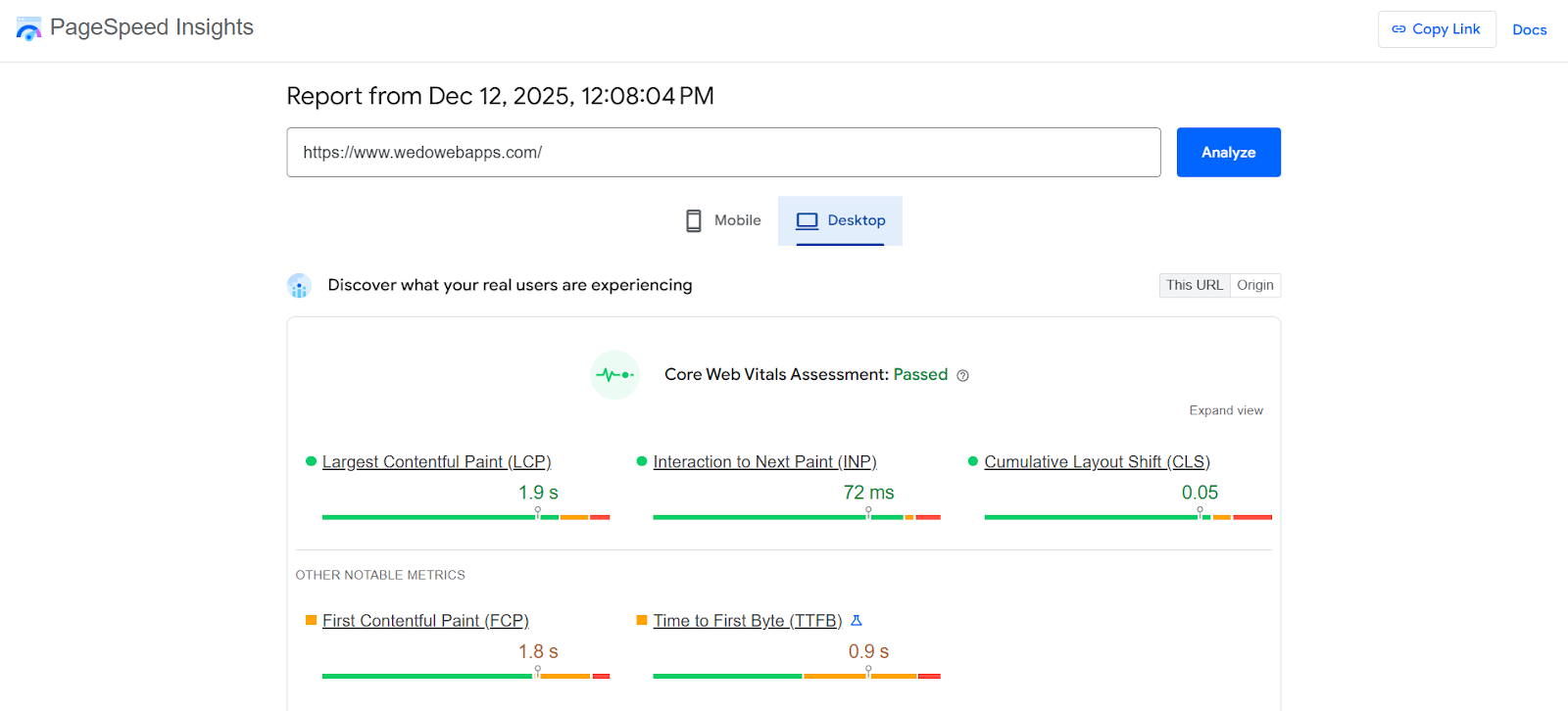
PageSpeed Insights is the fastest way to check your real-user INP performance. It provides:
- Field Data from the Chrome UX Report (CrUX)
- Lab Data for controlled testing
- Interaction breakdowns, such as input delay, processing time, and presentation delay
PSI also includes recommendations to fix slow JavaScript, long tasks, and layout bottlenecks.
Google Search Console -> Core Web Vitals Report
Inside Search Console, the Core Web Vitals report shows:
- INP performance grouped by URL patterns
- Mobile vs desktop responsiveness
- Real-world data from your actual visitors
This is essential for identifying sitewide interaction issues such as slow category pages, heavy product sliders, or delayed form interactions.
Lighthouse (Browser or CLI)
Lighthouse offers detailed lab-only INP diagnostics. Useful for:
-
- Testing performance before deployment
- Benchmarking code changes
- Simulating poor networks or devices
It also provides granular insights into render-blocking resources and long JavaScript tasks.
Chrome DevTools (Performance Panel)
DevTools gives developers the deepest visibility into interaction timing. You can:
- Record individual interactions
- Identify slow scripts
- Trace layout shifts and rendering paths
- Analyse input delay, processing delay, and presentation delay separately
Perfect for pinpointing the exact code responsible for INP spikes.
WebPageTest
WebPageTest allows multi-location, multi-device INP testing, making it useful for GEO optimisation, especially for regional markets like Australia, where network quality varies. You can generate:
- Comprehensive INP waterfalls
- Filmstrip views
- Real-time JS execution breakdowns
Third-Party Monitoring Tools (Cloudflare, SpeedCurve, New Relic)
Enterprise-grade tracking tools help monitor INP continuously over time. They offer features like:
- Real-user monitoring (RUM)
- Alerts when INP crosses a threshold
- Benchmarking against industry or competitor performance
These tools are ideal for businesses that rely on stable, consistent performance, such as eCommerce stores, SaaS platforms, agencies, and local businesses.
Common Reasons for Poor INP Score
Improving your INP Score starts with understanding what slows down user interactions in real-world conditions. Most poor INP scores come from delays caused by JavaScript, rendering bottlenecks, and heavy UI components. Below is a data-backed list of the most common issues affecting INP across websites in 2025.
1. Heavy JavaScript Execution
When too many JS tasks run on the main thread, interactions are delayed until processing finishes.
Common triggers:
- Framework-heavy pages (React, Angular, Vue)
- Large bundles not split properly
- Analytics or UI libraries loading upfront
2. Render-Blocking Scripts
JavaScript that blocks the browser from rendering the next frame directly increases input delay and presentation delay. These often include:
- Synchronous scripts
- Old plugins
- Inline scripts positioned before critical content
3. Slow Main-Thread Work
The browser cannot respond to user inputs if the main thread is busy.
Examples of heavy main-thread tasks include:
- JSON Parsing
- Image Decoding
- Layout Calculation
- Long Paint Operations
4. Non-Composited Animations
Animations that rely on layout, paint, or JavaScript cause massive INP delays.
High-risk properties include:
- Top, left, width, height
- Background changes
- Complex transitions
Using GPU-friendly properties (transform, opacity) helps keep animations smooth.
5. Third-Party Scripts & Tag Managers
Third-party integrations frequently block interaction responses, especially:
- Tag Manager containers
- Heatmap tools
- Marketing scripts
- Chat widgets
- Social media embeds
These cause random spikes that increase the worst-case interaction, which is what Google uses to assess INP.
6. Inefficient Event Handlers
Poorly optimised click, scroll, or input handlers slow down responsiveness, including:
- Heavy functions inside onclick.
- Expensive operations during user typing
- Blocking tasks tied to menu or form interactions.
Debouncing or splitting event logic significantly improves INP.
7. Large DOM Size
A bloated DOM increases processing time every time the user interacts. Common causes:
- Too many nested elements
- Overuse of sliders, modals, toggles
- Unoptimised CMS themes or page builders
DOM-heavy pages take longer for layout and paint phases, hurting interaction speed.
8. Slow Server Response
Although server response primarily affects LCP (Largest Contentful Paint), it indirectly impacts INP by delaying script execution.
Slow responses come from:
- Shared hosting
- Uncached pages
- Database bottlenecks
- Heavy plugins
Server latency -> slower script loading -> slower interactions.
9. Heavy Images Impacting Interactions
Unoptimised images affect more than layout; they also block resources needed for interaction processing. This happens when:
- Images are not compressed
- No lazy-loading is implemented
- Images decode on the main thread
- Large hero banners load before interaction scripts

How to Improve INP Score
Improving interaction responsiveness is now essential for rankings, UX, and SGE visibility, especially with Google’s 2025 Core Web Vitals Updates. This step-by-step framework explains how to improve INP score using modern performance strategies that work across WordPress, Shopify, custom builds, and high-JS frameworks.
1. Reduce Main Thread Blocking
The main thread is responsible for handling user interactions. If it is overloaded, INP spikes. Your priority is to keep it as free as possible.
- Code Splitting: Break large JavaScript bundles into smaller chunks so only essential components load first. SPA frameworks (React, NextJS, Vue) benefit the most.
- Lazy Loading: Load non-critical components only when needed. Examples: sliders, pop-ups, chat widgets, heavy UI components.
- Defer Non-Critical JavaScript: Use defer or async attributes to prevent scripts from blocking rendering.
Result: Improved input delay + faster time to interactive = better INP.
2. Optimise JavaScript Execution
JavaScript is the #1 cause of poor INP across global performance datasets.
Replace Heavy Libraries with Lightweight Alternatives
Examples:
- Replace jQuery-heavy plugins with native JS
- Use Preact instead of React (where possible)
- Use Swiper instead of bulky slider plugins
Remove Unused JavaScript
Audit Using:
- Chrome DevTools -> Coverage Tab
- Lighthouse -> Unused JS section
Optimise Event Listeners
Slow event handlers cause high interaction latency. Fix strategies:
- Debounce scroll/input events
- Throttle expensive interactions
- Move heavy logic outside the main thread (Web Workers)
3. Improve Server Response Time
Even though INP is interaction-based, slow servers delay script execution, increasing interaction lag.
- Use a CDN: Faster resource delivery = faster interactions.
- Implement Caching: Full-page caching cuts server execution time drastically.
- Reduce TTFB (Time to First Byte)
Strategies:
- Use premium hosting
- Optimise database queries
- Reduce plugin bloat
- Implement edge caching
4. Optimise Interactions & UI Responsiveness
INP directly depends on how quickly UI elements respond to user actions.
- Use CSS for Animations Instead of JavaScript: CSS animations using transform and opacity are GPU-accelerated and non-blocking.
- Avoid Long Task Blocking During Interaction: Move heavy tasks to background threads using:
-
-
- Web Workers
- requestIdleCallback
- setTimeout (for splitting tasks)
-
- Use requestIdleCallback Wisely: Load low-priority scripts only when the browser is idle, not during interaction.
5. Optimise Images & Media
Heavy images block resources needed for interaction scripts.
- Use Modern Formats (WebP, AVIF): Reduces file size by 30–70%.
- Implement Lazy Loading: Especially for below-the-fold images and videos.
- Serve Responsive Image Sizes: Use srcset &sizes to deliver images based on screen size.
6. Prioritise Above-the-Fold Interactivity
Everything a user sees immediately must be fast and lightweight.
- Defer Ads: Ads slow down the main thread and cause unpredictable INP spikes.
- Minimise Third-Party Scripts: Audit tools: analytics, heatmaps, pop-ups, social embeds.
- Optimise the Hero Section:
Focus on:
- Smaller background images
- Preloaded fonts
- Lightweight header interactions (menu, CTA buttons)
INP Score Optimisation Techniques for Developers
When you dive deeper into , the focus shifts from high-level fixes to developer-side, code-driven improvements. These techniques eliminate hidden performance bottlenecks inside the main thread and browser render pipeline.
1. Using the Long Tasks API
The Long Tasks API helps identify tasks that exceed 50ms and block the main thread, one of the core causes of INP delays.
Use PerformanceObserver to detect and break long tasks into smaller executions.
2. Breaking Long Tasks with Web Workers
Offload heavy computations (sorting, parsing, heavy loops, analytics processing) to Web Workers.
This ensures UI remains fully responsive during user interactions.
3. Reducing Event Listener Complexity
Complex event handlers dramatically increase input delay.
Optimise by:
- Removing redundant listeners
- Using passive listeners for scroll/touch
- Memoising handlers
- Moving heavy logic off the main thread
- Throttling and debouncing where appropriate
4. Code-Level Debugging Methods
Use browser profiling tools to find interaction bottlenecks:
- Performance panel
- Coverage tab (unused JS)
- Flame charts (long-blocking JS)
- Interaction replay
- Source maps to locate blocking lines
These offer granular insights into what delays the next paint.
5. Performance Profiling in DevTools
Chrome DevTools -> “Performance Insights” provides:
- Interaction latency breakdown
- Main-thread timing
- Layout shifts
- Script evaluation cost
- Event timing
This helps teams prioritise fixes based on real interaction flow instead of guesswork.
Professional digital marketing services in Adelaide and Beyond now prioritise INP optimisation because Google treats interaction responsiveness as a core ranking signal.
INP Score Google Recommendations
Google has updated its responsiveness guidelines significantly, making INP score Google criteria a major ranking signal in 2024–2025.
Google’s Updated 2024-2025 Guidelines
Google now prioritises:
- Input delay < 100ms
- Processing time < 100ms
- Presentation delay < 100ms
- Smooth, frame-consistent interactions
- Minimising main-thread blocking
Why Responsiveness > Speed Now
Google clarified that users judge websites more on how quickly the UI responds to touch, click, or input, rather than raw loading speed.
This directly influences engagement, conversions, and retention.
Key Lighthouse Audits That Influence INP
- Avoid long main-thread tasks
- Minimise JS execution time
- Reduce unused JavaScript
- Avoid non-composited animations
- Keep request counts low
These audits now affect INP-specific scoring.
Google’s Own Recommendations Checklist
Google officially recommends:
- Offloading heavy logic to workers
- Using CSS animations
- Minimising DOM size
- Compressing JS bundles
- Breaking long tasks
- Preconnecting to required origins
- Reducing third-party bloat
INP for WordPress Websites
WordPress sites struggle with INP primarily due to plugin bloat, heavy page builders, and slow themes.
Best Plugins for INP Optimisation
- WP Rocket (delay JS execution)
- FlyingPress
- Perfmatters (disable unused scripts per page)
- Asset CleanUp (script control)
- NitroPack (full performance suite)
Removing Heavy Page Builders
Page builders add thousands of DOM nodes + heavy JS.
Improve INP by switching from:
- Elementor -> Gutenberg or GenerateBlocks
- WPBakery -> Lightweight custom blocks
- Divi -> Block themes
Database Optimisation
A bloated database slows backend processing, indirectly delaying scripts.
Use:
- WP-Optimise
- LiteSpeed DB Optimisation
- Scheduled database cleanup
Theme Performance Best Practices
Look for themes that support:
- Vanilla JS
- Minimal DOM
- No jQuery dependency
- Native lazy-loading
- Optimised critical CSS
Lightweight themes:
- GeneratePress
- Blocksy
- Astra Performance Edition
Practical Tips for Elementor, Divi, WPBakery
-
- Disable unused widgets globally
- Remove motion effects & JS animations
- Limit global styles
- Reduce DOM depth
- Don’t use nested containers in Elementor

INP Score Optimisation for Custom, React, Angular, and Web Apps
This section gives you a competitive advantage; neither competitor covers this.
Framework-Specific INP Issues
- React: hydration delays, large bundles
- Next.js: heavy client-side JS
- Angular: zone.js overhead
- Vue: watcher reactivity overload
Optimising Event Handlers
- useCallback, useMemo</i
- Avoid inline functions
- Move heavy event logic to workers
- Use passive listeners
Code-Splitting Strategies
- Dynamic imports
- Route-level splitting
- Component-level lazy loading
- Suspense boundaries
Impact of Hydration on INP
Apps with heavy hydration (React/Next.js) have delayed interactions. Fixes:
- Partial hydration
- Islands architecture
- Progressive enhancement
- Server-side rendering with streaming
Better Routing & Rendering Strategies
- Use file-based routing
- Avoid large shared layouts
- Limit global state updates
- Optimise rerenders with memoization and signals
INP Score Case Studies
Case Study 1 – SaaS Dashboard – INP Reduced by 62%
Before:
- INP = 480 ms
- Slow charts + heavy JS
Fixes:
- Code splitting
- Moving API parsing to Web Workers
- CSS transitions instead of JS
After:
- INP = 180 ms
- 34% higher feature engagement
Case Study 2 – WordPress Website INP Fix
Before:
- INP = 320 ms
- Elementor + 42 plugins
Fixes:
- Replaced Elementor with Gutenberg
- Disabled unused plugins
- Implemented Perfmatters
After:
- INP = 120 ms
- Bounce rate dropped 22%
Case Study 3: React App INP Optimisation
Before:
- INP = 420 ms
- Hydration Blocking UI
Fixes:
- Implemented partial hydration
- Removed unused libraries
- Added route-level code splitting
<
After:
- INP = 160 ms
- 18% increase in conversions
Checklist: Improve INP Score in 30 minutes
- Remove Unused JS: Audit with coverage tab -> delete or unload per page
- Enable CDN: Serve static assets from edge locations.
- Compress Media: Convert images to WebP/AVIF.
- Minimise Script Execution: Delay non-critical scripts until user interaction.
- Core Web Vitals Plugin Solutions: Install
-
- FlyingPress
- Perfmatters
- WPRocket
These instantly reduce INP across most websites.
Conclusion
A high-performing website today depends on responsiveness, not just load time.
Improving INP leads to:
- Higher search rankings
- Better SGE visibility
- Stronger user experience
- More conversions & revenue
If your website is struggling, our team can help diagnose issues, fix performance bottlenecks, and implement Core Web Vitals best practices.
Need Professional INP Optimisation?
WEDOWEBAPPS Australia offers complete Core Web Vitals, performance, and INP Optimisation services for WordPress, custom apps, and enterprise websites.
Get a full INP Audit -> Book your consultation today!


















 Sharing Project Details
 Let's have a
call
Let's have a
call Got
Questions? Let’s Chat!
Got
Questions? Let’s Chat!